Org Explorer in Microsoft 365: What It Does, Where It Stops, and What to Use Instead
Org Explorer is Microsoft 365's free org chart viewer. It handles quick manager lookups, but search, exports, dotted lines and a company-wide view are not part of the package. Here is what it does, where it stops, and the point at which you need something else.
Every Microsoft 365 tenant already ships with a free org chart viewer. Microsoft calls it Org Explorer, and for one kind of question it is exactly enough.
People do look. Across 65 customer organizations in our product analytics (16,267 active employees, 90 days to August 14, 2026), 32.4% of employees opened an org chart. A third of your company will use whatever chart you give them.
Org Explorer shows you the reporting line. It cannot answer the more expensive question: who actually knows how to do this.
That gap is what this guide is about: what Org Explorer does, where to find it, common problems that make it invisible, where it stops, and the point at which you need dedicated org chart software.
What Is Org Explorer?
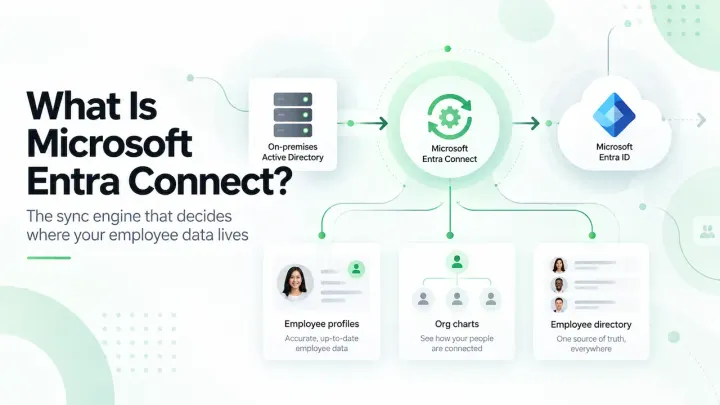
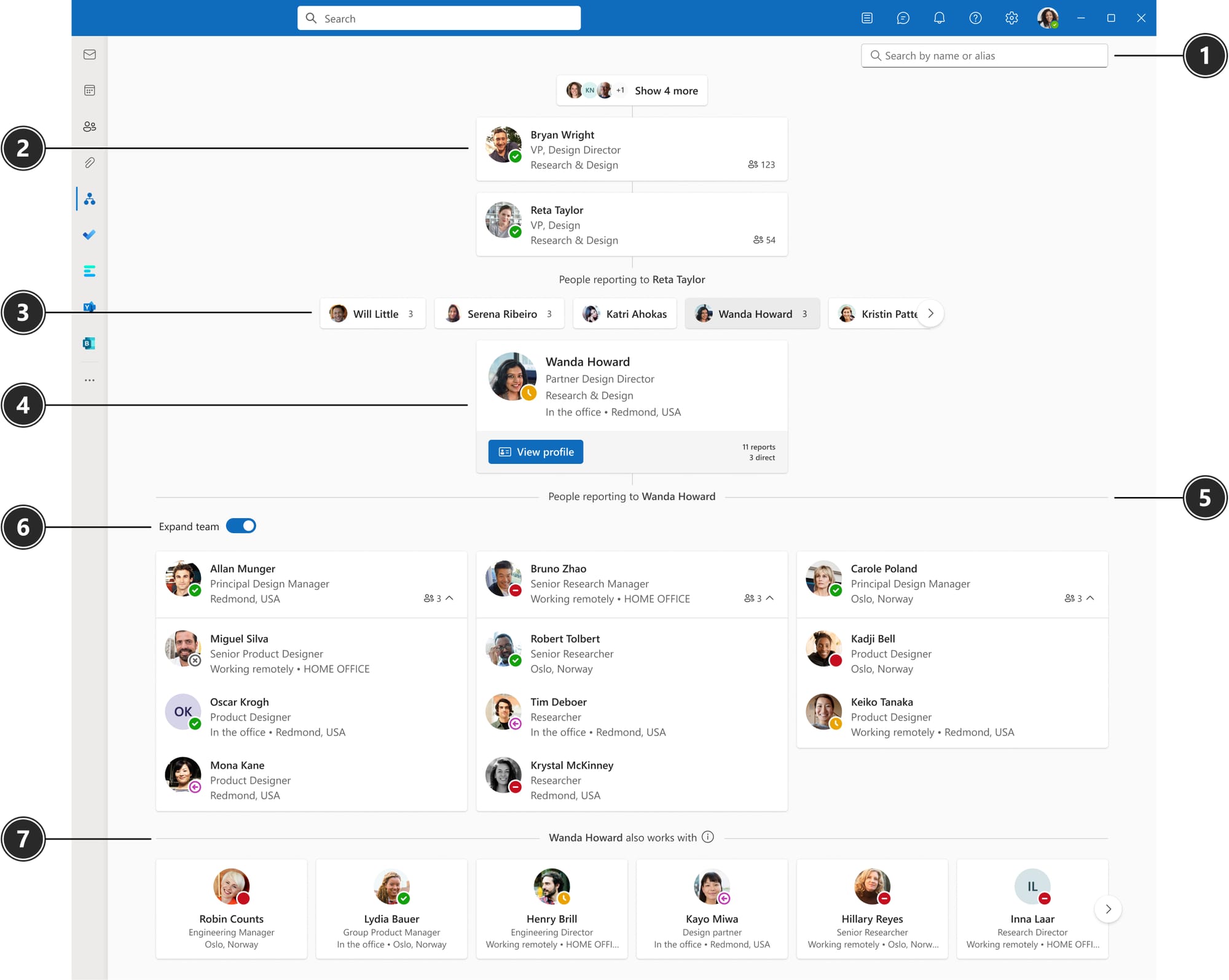
Org Explorer is Microsoft 365’s built-in org chart viewer. It lives inside Outlook and Teams, reads reporting lines from Entra ID (the identity system behind Microsoft 365), and lets you check a person’s manager and direct reports at no extra cost.
It does not require installation. If your organization has Microsoft 365 with Exchange Online, Org Explorer is already there.
What Org Explorer shows:
- A person’s manager
- Their direct reports (one level down)
- A "works with" list of frequent collaborators, based on email and calendar signals
What it reads from: the manager field in Entra ID. Every reporting relationship in Org Explorer traces back to that single field. If the manager field is empty or wrong, the chart is empty or wrong.
Where to find Org Explorer in Outlook
Open a contact card for any person in your organization (click their name in an email or search for them in the People pane). Select the Organization tab. You will see that person’s manager above them and their direct reports below.
Where to find Org Explorer in Teams
Open a one-on-one chat or a Teams channel. Click a person’s name or profile picture. In the flyout card, select Organization. The same manager and direct-report view appears, reading from the same Entra ID data.
Both views are read-only. You cannot edit the chart, add people, or change a reporting line from Org Explorer. Changes go through the Microsoft 365 admin center or Entra ID.
What Org Explorer Does Well
- Free and already deployed: if you are on Microsoft 365, it is in Outlook and Teams today, with nothing to install and nothing to buy.
- Instant hierarchy checks: who is this person’s manager, who reports to them. One click, answered.
- “Works with” context: it surfaces the colleagues someone frequently collaborates with, useful for basic context before a meeting.
Bottom line: for a quick “who reports to whom” check, Org Explorer does the job and does it at zero cost.
Where Org Explorer Stops
- One-dimensional navigation: you crawl up or down the reporting line one click at a time. There is no jumping to a department, no path highlighting, no whole-company view. For a 500-person company, getting from one end of the chart to the other means dozens of clicks.
- No dotted lines, no assistants: Org Explorer draws solid reporting lines only. Dotted-line relationships and assistant roles are invisible. If your company runs matrix teams, project leads, or executive assistants with functional reporting, none of that appears.
- No export: there is no download button. Getting a chart into a board deck means screenshots stitched together by hand.
- No customization: no branding, no layout options, no choice of which fields to display.
- No search by skill, department, or location: you can look up a person by name and see their card. You cannot ask “who in the Chicago office knows Salesforce” or browse by department.
- No company-wide view: there is no way to see the entire organization on one screen or to zoom between levels. Every view is anchored to one person.
I opened Org Explorer on our 200-person demo tenant to test exactly this. I wanted to see the full reporting chain from a front-line customer service rep up to the CEO. Seven clicks to get there: rep, team lead, department manager, senior manager, VP, SVP, CEO. Each click loads a new card and drops the previous level off the screen. There is no breadcrumb, no way to jump back, and no way to see how the two ends of that chain connect without clicking through the whole thing again. Screenshotting the journey for a board deck took eleven screenshots and about fifteen minutes of stitching.
Why Org Explorer Goes Blank (and How to Fix It)
If Org Explorer is not showing people, not appearing at all, or displaying the wrong reporting line, the issue almost always traces back to Entra ID data.
Org Explorer not showing employees
The most common cause. Org Explorer only shows people whose manager field is populated in Entra ID. If the field is blank, that person appears orphaned or missing from the chart entirely.
How widespread is this? Across 65 organizations at their first Microsoft 365 sync, the manager field was populated for only 42% of profiles. More than half the workforce was invisible to Org Explorer before any cleanup happened. Getting from 42% to 79% took those organizations months of admin work: reviewing every profile in the Entra ID admin center, chasing department heads for correct reporting lines, and bulk-updating records that had never been touched since the accounts were provisioned. It was not a toggle. (Full data)
Fix: Open the Microsoft 365 admin center or Entra ID admin center. Search for the missing person. Edit their profile and populate the Manager field. The change syncs to Org Explorer within a few hours.
Org Explorer not appearing in Teams or Outlook
Possible causes:
- The person’s mailbox is not on Exchange Online (required)
- The admin has disabled the Organization tab in Teams admin center
- The user has a license that does not include Exchange Online
- Guest accounts and shared mailboxes do not appear in Org Explorer
Wrong reporting line
Org Explorer reads what Entra ID has. If someone reports to the wrong person in the chart, edit the manager field in the admin center. There is no way to override it inside Org Explorer.
OneDirectory: Built for Day-to-Day Use
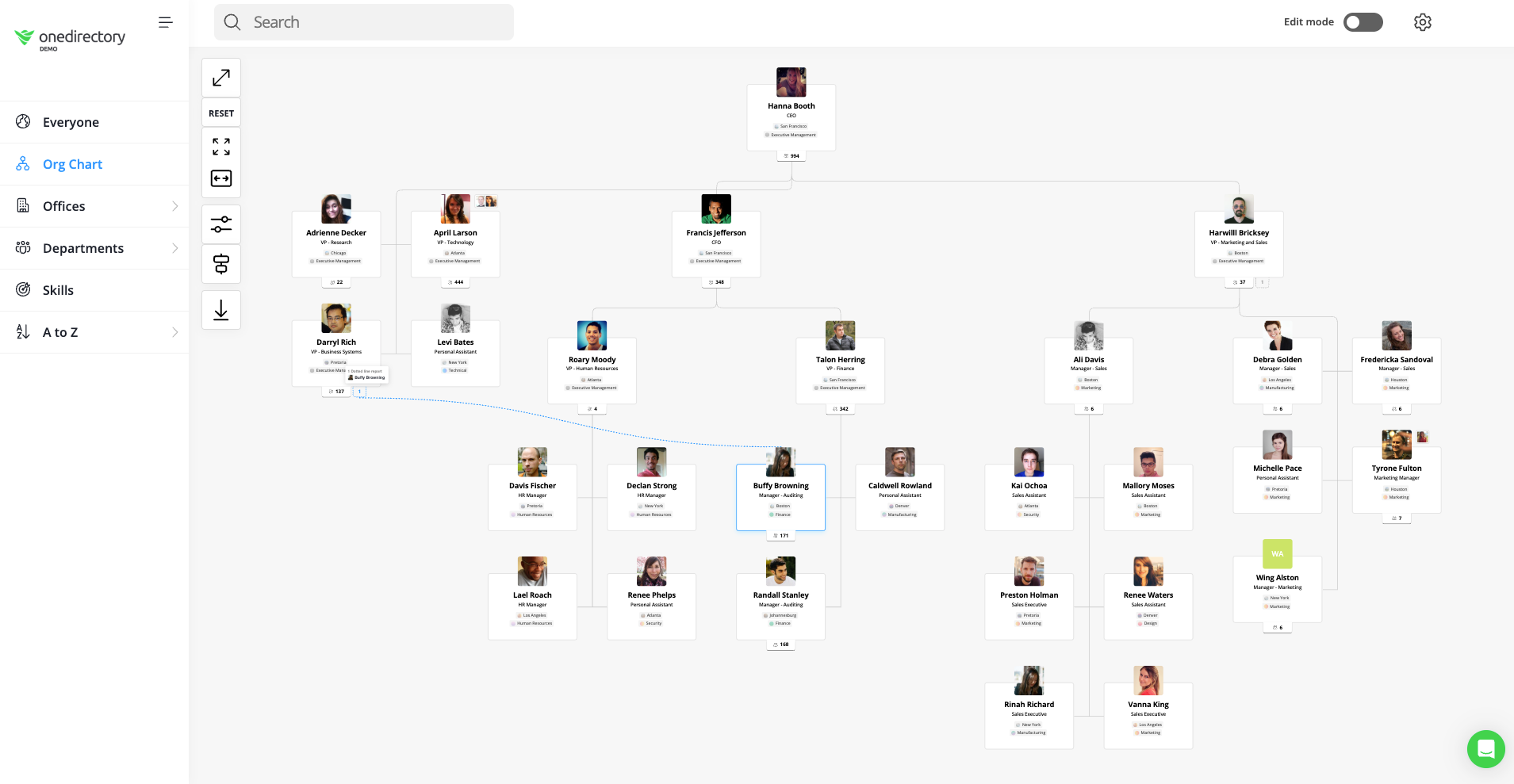
OneDirectory is org chart and employee directory software for medium-to-large companies that rely on accurate, accessible employee data every day.
Where OneDirectory is different
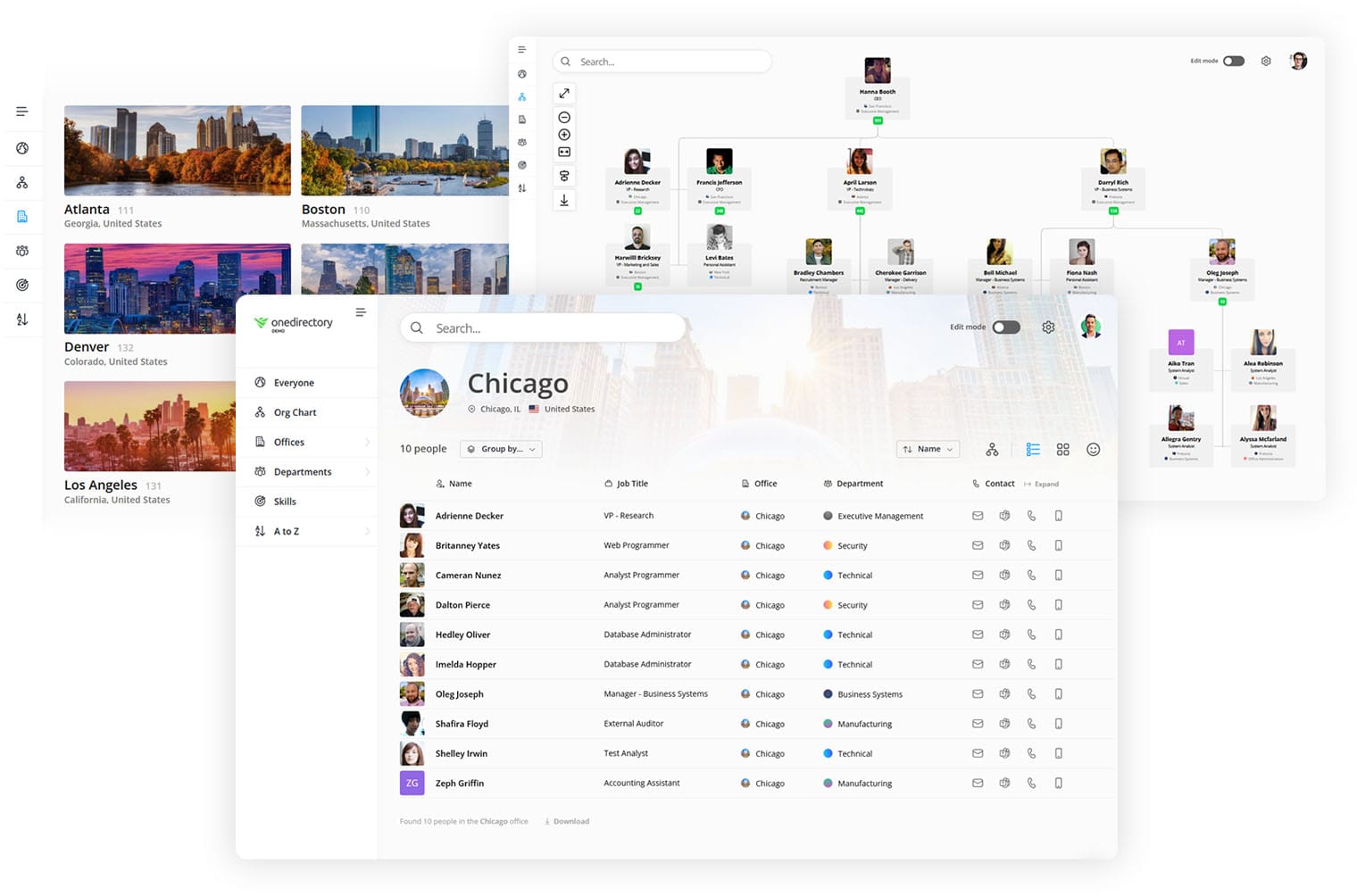
- Interactive org charts: navigate, zoom, and explore the entire structure. Highlight reporting paths, pick any starting point, and show dotted-line and assistant relationships.
- Search that covers the whole company: find colleagues by name, skill, department, location, or custom attributes, with the directory and the chart integrated in one place.
- Export and share: org charts export to PDF or PNG for presentations, planning, and reviews, with layout options you control.
- Rich employee profiles: every employee gets a visual profile with photo, bio, skills, and custom fields.
- Office and department pages: branded pages for each location and team, which matters most in distributed companies.
- Scale: companies with thousands of employees navigate and search without performance problems. In deployments above 500 active users, our renewal rate runs above 80% as of August 2026.
Like Org Explorer, OneDirectory reads from Entra ID. The difference is what it does with that data once it has it.
Org Explorer vs OneDirectory: Feature Comparison
| Capability | Microsoft Org Explorer | OneDirectory |
|---|---|---|
| Price | Included with Microsoft 365 | Paid, banded by company size |
| Chart navigation | One reporting level at a time | Full interactive chart: zoom, jump to any team, highlight reporting paths |
| Company-wide view | ❌ No | ✅ Whole organization on one screen |
| Dotted lines and assistants | ❌ Not shown | ✅ Supported |
| Search by skill, department, location | ❌ No | ✅ Name, skill, department, location, custom fields |
| Export | ❌ None | ✅ PDF and PNG |
| Layout and branding | Fixed (Microsoft default) | Custom layouts and branding |
| Employee profiles | Basic profile card | Photos, bios, skills, custom fields |
| Department and office pages | ❌ None | ✅ Included |
| Data quality visibility | ❌ None | ✅ Profile completeness scoring per field |
| Data source | Entra ID (read-only) | Entra ID sync + editable custom fields |
Who Should Use Which Tool?
| Company Size | Microsoft Org Explorer | OneDirectory |
|---|---|---|
| Small (<100 employees) | ✅ Great for simple hierarchy checks. | ❌ Probably overkill, unless fully remote. |
| Medium (100–2,000) | ❌ Quickly hits limits on search, exports, and complex structures. | ✅ The fit we built for: search, exports, data-quality visibility. |
| Large (2,000+) | ❌ Too basic for complex reporting structures. | ✅ Purpose-built for scale and complex reporting lines. |
The True Cost of Free
Choosing Org Explorer because it is free looks like the smart financial move. The costs show up later, in time rather than license fees:
- Time: finding anything beyond a direct manager means clicking through the hierarchy one level at a time, and rebuilding charts for decks means manual screenshot work every quarter.
- Hidden expertise: with no skill or department search, the person who has solved your problem before stays invisible.
- Shadow spreadsheets: teams that need a real directory build their own lists, which drift out of date the week they are made.
- First impressions: a new hire’s first view of your company is a basic profile card rather than a directory that shows them who does what, where.
When Does OneDirectory Pay for Itself?
- Onboarding: new hires get rich profiles and a clear structure from day one.
- Cross-functional work: skill search shortens the path from “who knows this?” to an answer.
- Management and HR visibility: exportable, customized org charts feed real planning and reviews.
- Data quality: the directory makes gaps in employee data visible and quick to fix.
That last point is measurable. Across the same 65 tenants, between first Microsoft 365 sync in January 2026 and August 2026, the manager field went from populated on 42% of profiles to 79%, and average profile completeness rose from 30.8% to 44.1%. We published the full before-and-after numbers here.
Two limitations belong next to those numbers. The cohort is self-selected: every organization in it had already decided its directory needed work. And the software cannot take the credit alone: every organization also ran its own cleanup over the same window, and the two effects cannot be separated.
42% → 79%
Manager field coverage across 65 organizations, first sync to August 2026
 Greg Bennett

 Greg Bennett

What Else Microsoft 365 Offers (and Where That Stops Too)
Org Explorer is not the only built-in option. Microsoft 365 includes several other ways to view or build an org chart, and each one hits its own wall:
- SharePoint Organization Chart web part: embeds a chart on any SharePoint page, but offers limited customization and reads from the same Entra ID data as Org Explorer. Useful for intranet pages, but not a full org chart tool.
- Microsoft Visio: creates org charts manually or auto-generates them from a data source. Requires a separate Visio license. Good for one-off charts, but not a live, auto-updating directory.
- Teams Organization tab: the same view as Org Explorer in Outlook, accessed through a person’s profile card in Teams. Not a separate tool.
For a complete walkthrough of every option, see our guide to what is an organizational chart.
Third-party alternatives that read from Entra ID include TeamOrgChart and Employee Directory 365. Each takes a different approach to the same data.
Questions Buyers Ask
What is Org Explorer in Microsoft 365?
Org Explorer is Microsoft 365’s built-in org chart viewer. It lives inside Outlook and Teams, reads reporting lines from Entra ID, and lets you browse the management chain one level at a time. It ships with Microsoft 365 at no extra cost.
Where do I find Org Explorer?
In Outlook, open any person’s contact card and click the Organization tab. In Teams, open a person’s profile and select Organization. Both views read from the same Entra ID data.
Can you export an org chart from Org Explorer?
No. Org Explorer has no export function. To get a chart into a slide deck you must screenshot it piece by piece. OneDirectory exports full org charts to PDF and PNG.
Does Org Explorer show dotted-line reporting or assistants?
No. Org Explorer displays solid-line reporting only. Dotted-line relationships and assistant roles do not appear, which makes it incomplete for companies whose real structure includes matrix reporting.
Why is Org Explorer not showing some employees?
Org Explorer reads from Entra ID. If the manager field is empty for a person, they will not appear in the chart. Check the Entra ID admin center to confirm the manager field is populated. Across 65 organizations at first sync, the manager field was populated for only 42% of profiles.
Why is Org Explorer not working in Outlook or Teams?
Common causes: the Organization tab requires a Microsoft 365 license with Exchange Online, the admin may have disabled the Organization tab in Teams admin center, or the person’s mailbox is not on Exchange Online. Shared mailboxes and guest accounts do not appear in Org Explorer.
Can you search by skill or department in Org Explorer?
No. Org Explorer shows the reporting hierarchy only. There is no search by skill, department, location, or custom field. You can look up a person by name, but you cannot browse or filter the org chart by any attribute.
What is the difference between Org Explorer and OneDirectory?
Org Explorer is a viewer: it displays the reporting lines already in Entra ID. OneDirectory is org chart and employee directory software with company-wide search, rich profiles, department pages, PDF and PNG exports, dotted-line and assistant reporting, and visibility into the quality of the data itself.
Is there an Org Explorer alternative for Microsoft 365?
Yes. Dedicated org chart software like OneDirectory reads the same Entra ID data but adds company-wide search, interactive charts, export, dotted-line reporting, and rich employee profiles. Other options include Microsoft Visio (manual chart creation), the SharePoint Organization Chart web part (limited), and third-party tools like TeamOrgChart.
When is Org Explorer enough on its own?
When your organization is small, the hierarchy is single-line, and nobody needs to search by skill or export a chart. If manager lookups inside Outlook cover your needs, keep Org Explorer and spend nothing.
Final Thought: Feature vs. Platform
Org Explorer is a feature inside Microsoft 365: a quick reference that works for minimal needs, at a price of zero.
OneDirectory is org chart and employee directory software for companies where finding people, and trusting what you find, is daily infrastructure.
- If a quick reference is enough, stick with Org Explorer. It costs nothing and does that job.
- If your organization needs search, exports, real reporting structures, and data you can trust at scale, that is the job OneDirectory was built for.
Start your free trial of OneDirectory and put your own tenant’s data in front of you.